
The staff app
The one screen your team taps every shift: install it, find your way around the tabs, slide to clock in and out, take a break, and watch your pay count up live.
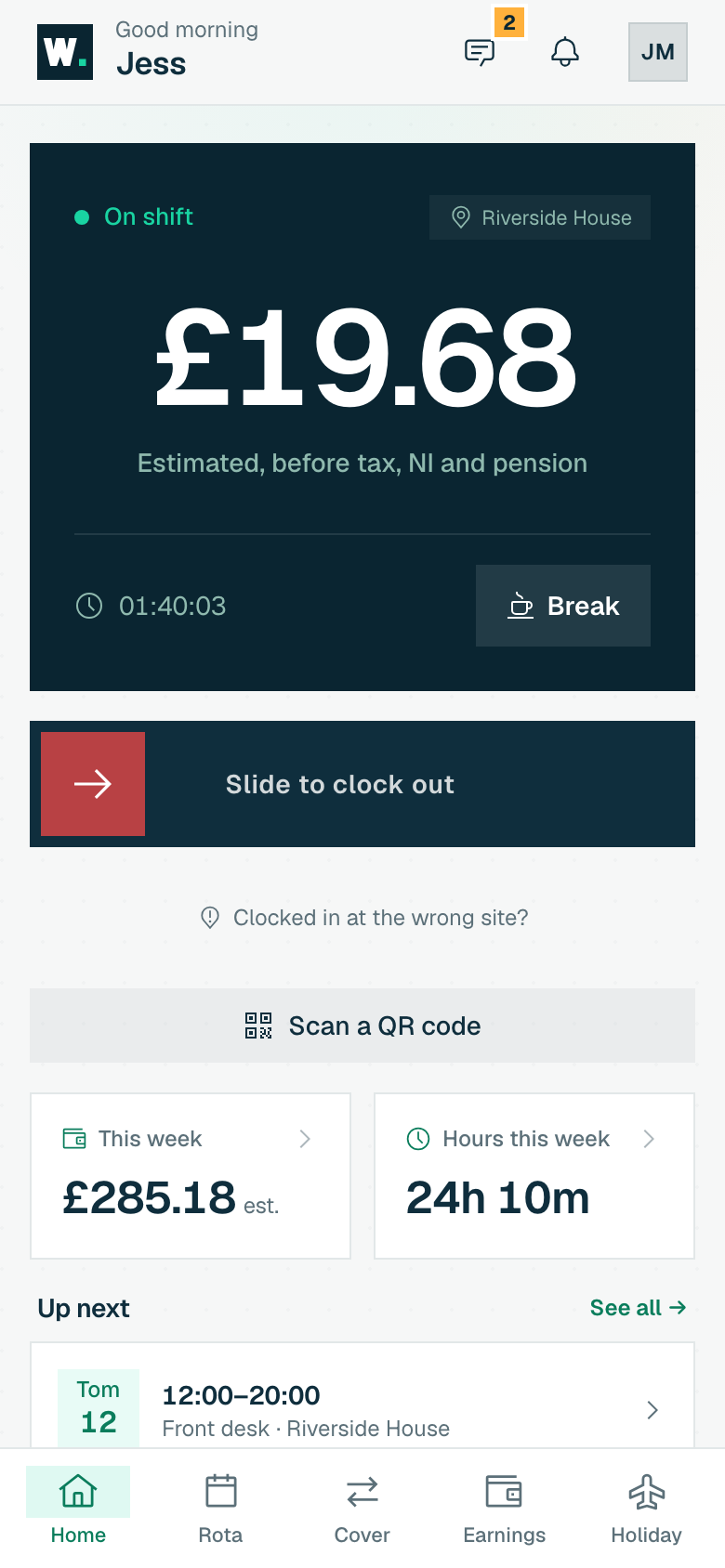
The staff app is where a team member lives day to day: one home screen that changes shape with the shift. Off shift, it’s a big slide to clock in. On shift, it’s a live earnings gauge with a break button. When you finish, it’s a quick “nice work” summary. Everything else (your rota, cover, earnings and holiday) sits one tap away on the bottom tabs. This page is the whole tour.
Install it on your phone
WagePilot is a web app that installs to your home screen like a normal app: no app store, no download wait. Once installed it opens full-screen, opens even when the signal drops, and can ping you when your rota changes. A card slides up from the bottom to offer it; you can also add it by hand.
Adding it
- Android / Chrome
- Tap Install app on the card that appears, or use the browser’s “Install” / “Add to Home screen” menu. It lands on your home screen straight away.
- iPhone / Safari
- Tap the Share button, choose Add to Home Screen, then Add. iOS needs this manual step: the install card shows a “How to add it” guide with the same three steps.
- Why bother
- The chips on the card say it: faster clock-in, works offline (the app opens without signal; see below for what a clock-in still needs) and shift alerts. Push notifications only work once it’s installed on iPhone.
Find your way around
The app is a fixed frame: a header across the top, your tabs across the bottom, and the screen you’re on scrolling between them. Nothing rubber-bands like a web page.
The header
- Greeting + your name
- Top-left shows “Good morning” (and so on) with your first name and the workplace logo. Tap it any time to jump back to Home.
- Messages
- A speech-bubble button, shown only if your workplace uses Team messages. A count badge (up to “9+”) marks unread messages; it clears when you open them. A message can be up to 2,000 characters. Your managers can see messages sent in WagePilot, including direct messages, and the app says so under the message box. See Messages.
- Notifications
- The bell opens your notifications. A badge shows how many are unread.
- Your avatar
- Top-right, opens your profile: details, password, availability and your data.
The bottom tabs
- Home
- Clock in and out, your live pay, today’s shift and this week’s totals.
- Rota
- Your own schedule week by week. Shown when your workplace runs shifts.
- Cover
- Pick up open shifts, or give one of yours away. Shown when shift cover is switched on.
- Earnings
- Your pay history, statements and a shift-by-shift breakdown.
- Holiday
- Your balance, and booking time off.
Cards that appear on Home when they apply
- Checklists
- Shown when your workplace uses checklists and one is due at the site you are working. Tap it to answer each item and submit. With no signal it is saved on your phone and sent when you are back online. See Checklists.
- Site access
- Shown when a door, alarm or key-safe code has been shared with you, or you hold a key. Tap Reveal to see a code: it hides again after 30 seconds, and your manager can see each reveal. Some codes only show around your shift. Under My keys you confirm a key you have been given by typing your full name and tapping I have received this key. See Site access.
To refresh any screen, pull down from the top. A small spinner appears and everything reloads. It’s the same tug you’d use to refresh any phone app.
Clocking in
-
01
Slide to clock in
Drag the green Slide to clock in control all the way across. It’s a deliberate slide, not a tap, so a phone in your pocket can never start a shift by accident.
-
02
Pick a site if you’re asked
If you work at more than one site and today’s shift doesn’t pin the location, a “Where are you clocking in?” sheet lists the workplace’s sites with their addresses: tap the one you’re at.
-
03
You’re on
The earnings gauge starts ticking. Your location is read once at that moment to confirm you’re on-site, then it stops looking.
While you’re on shift
What each control does
- Live earnings gauge
- The big number counts your estimated pay up in real time, with a running stopwatch of time on shift beneath it.
- Overtime badge
- If your hours cross a daily or weekly overtime threshold, an “Overtime 1.5×” chip appears and the gauge switches to the higher rate. You watch it step up the moment it happens. See Pay & overtime.
- Location chip
- Top-right of the gauge shows the site you’re clocked in at (or “GPS verified”).
- Break
- Tap Break to start one and End break to come back. The app tells you whether it’s a paid break or whether your earnings are paused. You don’t choose; it follows your workplace’s policy.
- Slide to clock out
- The amber slider ends the shift. It reads your location once, the same as clock-in, then shows your total.
- Scan a QR code
- Shown when your workplace uses QR: opens the scanner to clock in or out from a printed code at the site instead.
Clocking in by scanning a code
Where GPS is weak (a basement, a thick-walled building) your workplace may put a printed QR sign-in code at the entrance. Tap Scan a QR code on Home (or point your phone camera at the poster). You can also type the short code printed under it, e.g. QR-7Q4FKD, if the camera won’t play. If you’re signed out when you scan, you’ll be asked to sign in first and then taken straight to the clock-in screen.
Clocking in at a shared tablet
Some workplaces put a shared tablet at the site instead of, or alongside, clocking in on your own phone. It shows everyone working at that site as a big list of names, and it is the same clock as the app: the hours land in the same place and show up in your earnings the same way.
-
01
Tap your name
Names are big and in alphabetical order, with anyone already on shift at the top. If there are a lot of you, a search box appears, so type the first few letters of your name.
-
02
Type your PIN if you’re asked
Your Kiosk PIN is a 4 to 6 digit code your manager sets for you on your profile. It is what stops someone else clocking in as you, so keep it to yourself. If the tablet says you have no PIN set, ask your manager to add one. Five wrong tries and the tablet holds your name for 30 seconds. Keep going and the server locks you out for 60 seconds, and that one does not clear if you reload the page. Both are per person, so nobody else in the queue is held up.
-
03
Check the green confirmation
You should see “Welcome” with the time you clocked in (or “See you” in amber when you clock out). That time, and nothing else, is what has been recorded. If it looks wrong, say so before you start your shift, not at the end of the week.
-
04
Let it reset
A bar counts down and the tablet returns to the list of names for the next person. You can tap the screen to send it back straight away.
Finishing your shift
After you clock out, Home shows a short “Nice work” card (the hours you worked and your estimated gross for the shift) with a View earnings button. Your running-week tiles, This week (estimated pay) and Hours this week, sit under the clock-in slider on your other home screens; tap either to open your full earnings.
When you’re not on shift
- A shift today: your next shift shows as a card with its start time, site, role, how long until it starts, what you could earn and who else is on, sitting above the slider.
- Nothing today: Home stays Ready when you are with the slider in place, so you can clock in whenever you actually start; any shift further ahead is lined up below it.
- Open clock-in: where your workplace runs no rota, Home is simply “Ready when you are” with the slider always there to start and end a shift.
- Up next: a short list of your upcoming shifts, with a See all link through to your rota.
Turn on notifications
A card on Home invites you to turn on notifications so you get a ping the moment your rota changes, a shift’s confirmed, or a manager messages you, even with the app closed. Tap Enable notifications and allow it when your phone asks. You can dismiss the card with the ×, and turn push on later from Notifications.