
Audited timesheets
Review, fix and approve each week from one screen, with exception chips on every row and a reason recorded for every change.
Every week of clock events lands here as a clean timesheet to review, fix and approve. The point of difference is the audit trail: every edit you make requires a reason and is recorded in a tamper-evident history that staff can see too. When a shift is disputed, or HMRC asks, you have a paper trail instead of an argument.
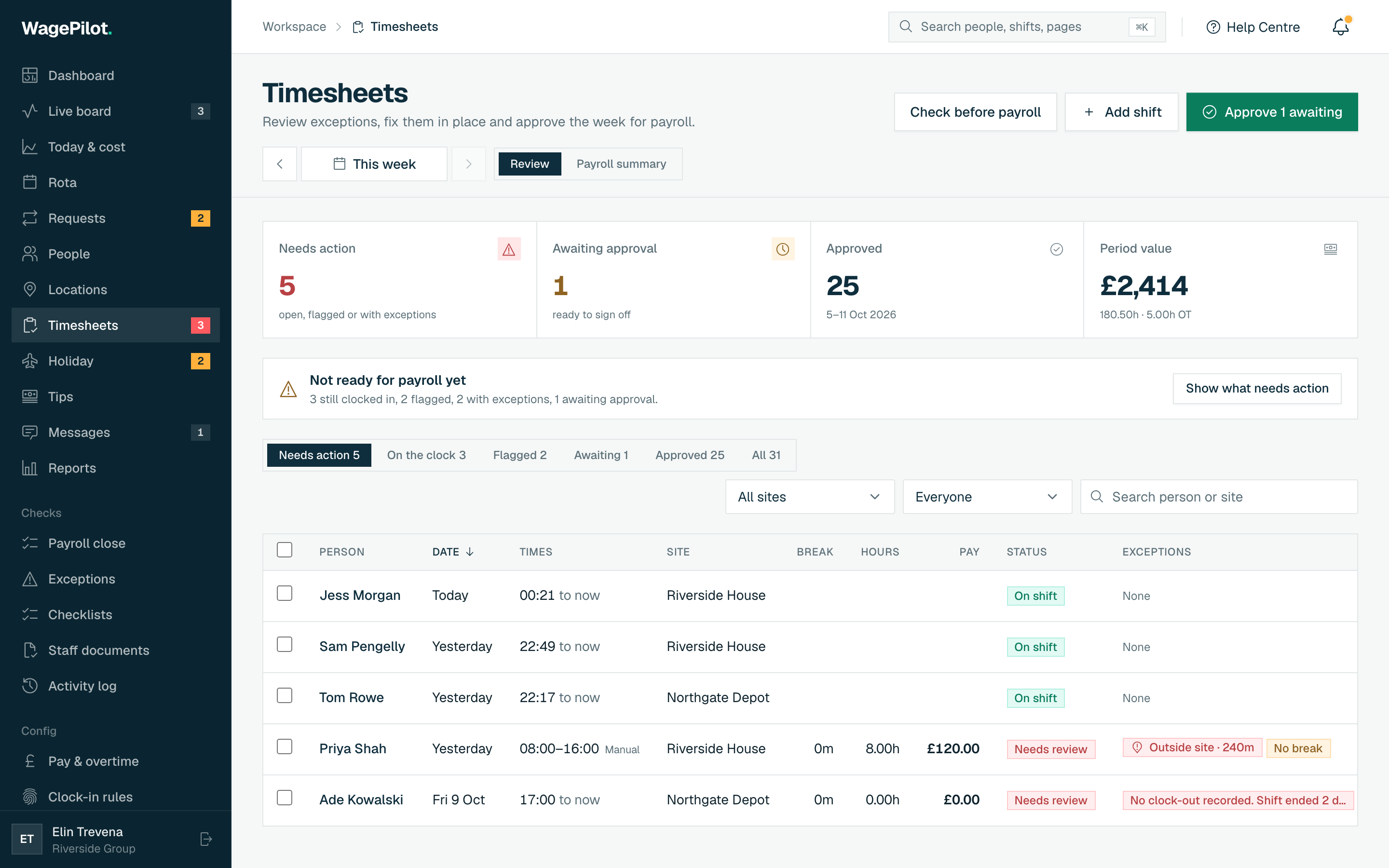
The period at a glance
Four cards across the top total the selected period so you can see what needs doing before you scroll.
- Needs action
- Shifts that want a look before you sign off: a forgotten clock-out, a flagged shift or a fixable exception.
- Awaiting approval
- Finished shifts ready to approve.
- Approved
- Shifts signed off this period: the figures of record, ready to export.
- Period value
- Estimated gross pay for the window, using the same weekly-overtime reconciliation as Reports.
Below them, a readiness card says either Ready for payroll or Not ready, with a button to show what needs action or approve what is waiting. Check before payroll at the top opens Payroll close.
Pick the week or pay period
The stepper drives what you are looking at. Everything below it (the cards, the list, bulk selection) is scoped to that window.
-
01
Step week by week
Use the arrows to move a week at a time. Next is capped at the current week. There are no timesheets in the future.
-
02
Open the range popover
Tap the centre label to open a picker with one-tap presets.
-
03
Jump to a pay period
Presets include This pay period, Last pay period, This month and Last month, aligned to your organisation’s pay cycle.
-
04
Or set a custom range
Enter a From and To date and tap Apply range for any window you like.
Filtering the list
- The status control filters by Needs action, On the clock, Flagged, Awaiting, Approved or All, each with a count.
- Narrow by site or person, or search by person or site name.
- The list is paginated, so a busy period never renders all at once.
What each row shows
- The person, date, times, site, break, paid hours, estimated pay and status. Sort by person, date, hours or pay, and tap the person to open the full shift breakdown.
- An Exceptions column with chips such as Missing clock-out, Overlong, No location, Outside site, Auto break, No break, Overtime and School age. Hover a chip for what it means.
- Row actions: Close shift on an open shift, Fix where an exception can be fixed, Edit, Approve and delete.
Approving hours
Approving signs a shift off as the figure of record. Only approved hours go into the CSVs and the payroll export, so you never export something you haven’t signed off.
The three ways to approve
- Approve (per row)
- Signs off that one shift.
- Approve N awaiting
- The header button approves every shift awaiting approval in the window in one go.
- Approve N (selected)
- Tick rows, then use Approve N in the selection bar to sign off exactly those. Open shifts must be closed first.
Fixing a shift with a reason
Tap Edit on any settled shift to correct it. Pay is recomputed server-side from what you enter, and the change is logged.
What the edit form lets you change
- Date
- Move the shift to another day (can’t be in the future).
- Clock in / Clock out
- Correct the times. Overnight shifts are handled automatically.
- Break (minutes)
- Adjust the unpaid break. Only re-priced if you actually change it.
- Hourly rate (£)
- Correct a wrong rate for this shift. A ‘Use £X’ shortcut fills in the person’s profile rate for that date, recalculated if the date lands on a bank holiday. A minimum-wage check shows as you type.
- Rota shift
- Link the shift to the rota shift it belongs to, so role rates and attendance checks line up.
- Reason for the edit
- Required. Recorded in the audit log and shown to the employee. Save & record stays disabled until you give one.
Closing a forgotten clock-out
-
01
Find it under ‘On the clock’
Open shifts carry a Missing clock-out chip and count under Needs action.
-
02
Tap ‘Close shift’
On an open shift the row action is ‘Close shift’, and the clock-out defaults to now.
-
03
Adjust the time and give a reason
Set the real finish time (for example from a site log or CCTV) and record why, then Save & record.
Adding a shift that was never clocked
Use Add shift (top right) for a shift that never made it into the system: someone forgot to clock in, a kiosk was down, or you’re correcting the record.
-
01
Pick the person and site
Employee and Location are both required. You can also pick the Rota shift it belongs to.
-
02
Set the date and times
Choose the day (not in the future) and the clock-in/out times.
-
03
Set the break
The break defaults to your organisation’s default. A live ‘≈ Xh paid’ estimate shows the resulting paid hours, and notes if breaks are paid at that site.
-
04
Add a reason or note
Recorded in the audit log, handy evidence (‘CCTV confirms 9 to 5’). If the date is in a closed pay period you are asked to reopen it first.
-
05
Choose whether to approve now
The ‘Approve straight away’ toggle is on by default. Turn it off to drop the shift into the approval queue for a second check instead.
Deleting a shift
-
01
Tap the bin icon
On any row, or use Delete N in the selection bar for several at once.
-
02
Give a reason
A reason is mandatory: it’s audited and shown to the affected employee.
-
03
Confirm
Deleted shifts are removed from pay and reports, and the employees are notified.
Bulk actions
- Tick individual rows, or the header checkbox to select the page.
- A bar shows Approve N, Delete and Clear.
The Payroll summary view
Switch from Review to Payroll summary for one row per person with hours, holiday pay, the 12.07% rolled-up line, SSP, tips and totals for the period. It counts approved hours only. Print or save PDF produces a clean sheet for whoever keys pay in by hand. These are estimates for your own payroll.
Long shifts with no break
Adults working more than 6 hours are entitled to a 20-minute rest break (Working Time Regulations 1998 reg 12). If your automatic unpaid break is off and 3 or more shifts over 6 hours in the last 14 days had no break recorded, the Dashboard shows a card saying how many, and that they were paid in full. Set up breaks opens Settings, where Deduct this break automatically takes a break off long shifts when nobody records one. Individual shifts also show a No break chip here and a Break too short exception.