
Holiday approvals & balances
Approve or decline leave with clash warnings, see who is off, track balances and holiday liability, and close the leave year.
The Holiday screen is your one inbox for leave. Staff request from their phones; you approve or decline here, warned about rota clashes, with the whole team’s balances alongside. (For how UK entitlement and the 12.07% accrual rule are calculated, see Holiday & accrual.)
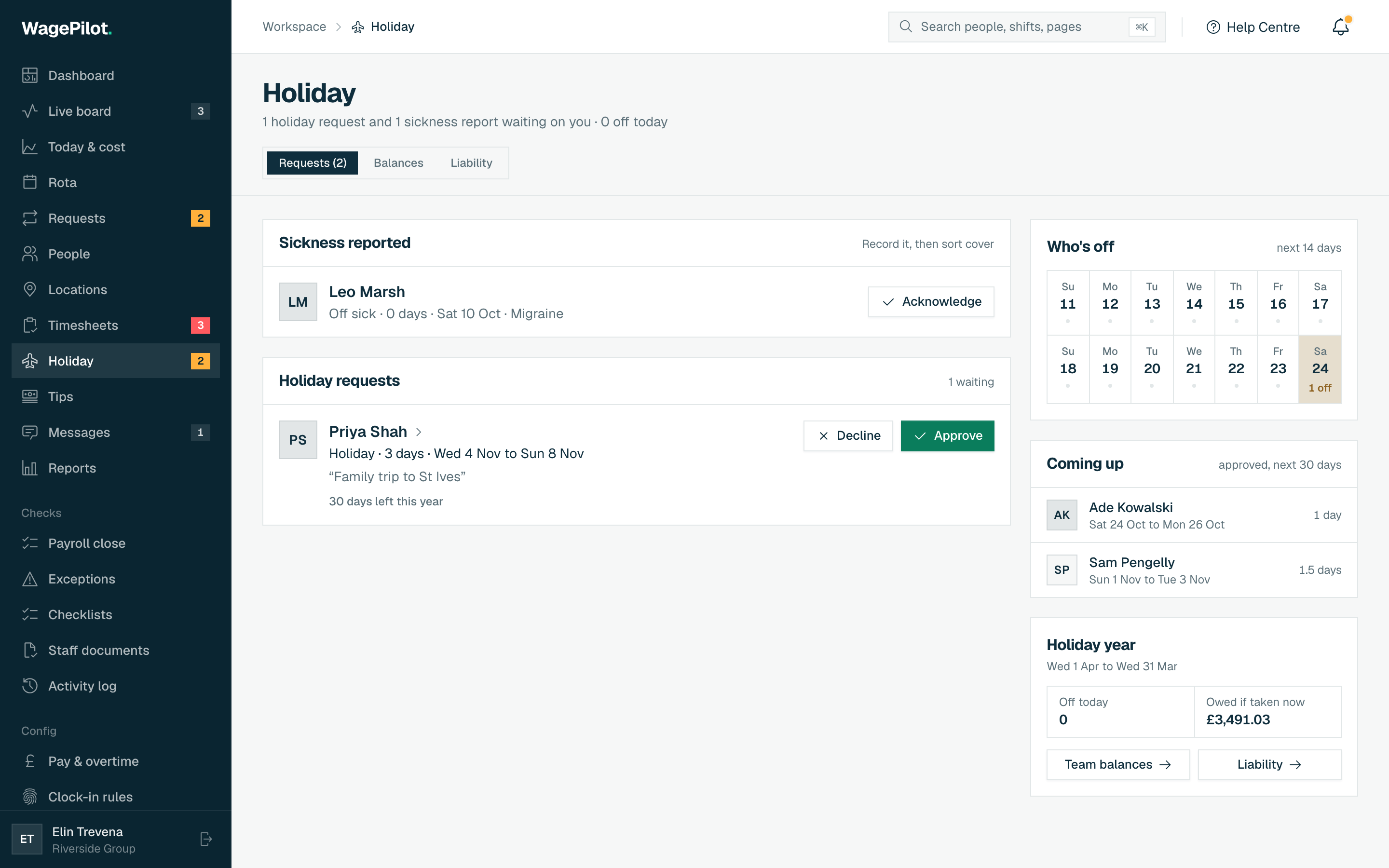
The inbox at a glance
The heading tells you how many holiday requests and sickness reports are waiting on you, and how many people are off today. Four tabs split the page: Requests, Balances, Liability and Year end.
Who’s off: next 14 days
Who’s off shows the coming fortnight, one cell per day, so you can eyeball coverage before you approve one more request on a thin day.
Approve or decline a request
Each pending request is a card showing the person, the leave type (Holiday, Sick, Unpaid or Other), the number of days, the dates and any reason they gave.
-
01
Check for a clash
If the dates collide with a shift the person is rota’d for, the card shows ‘Clashes with an assigned shift’ in red.
-
02
Open the person if you need context
Tap the card body to jump to their profile: balance, history and upcoming shifts.
-
03
Approve
One tap. Approved leave updates their balance and shows on the rota so you don’t schedule over it.
-
04
Or decline
Opens a short dialog so you can give a reason before it’s sent.
Declining with a reason
-
01
Tap Decline
The dialog names the person and the start date so you know which request you’re acting on.
-
02
Add an optional reason
Tap one of the common reasons or write your own under Reason (optional). It is shown to the employee with the decision.
-
03
Confirm
The request is declined and the person is notified.
Sickness reports
Sickness staff report from their app shows under Sickness reported at the top of Requests, so you can record it and sort cover. Owners also see a Fit notes card for spells over 7 days: see Holiday & accrual.
Team balances
The Balances tab lists everyone with their allowance, taken, booked and remaining leave and a bar showing how much is used. Search it by name; each row links to that person’s profile. Staff whose holiday is measured in hours are shown in hours.
Holiday liability
The Liability tab values accrued, untaken holiday as of a date you choose: per person, their basis, remaining leave, pay method and an estimated amount owed if it were taken now, with a total. Staff on rolled-up (12.07% paid-as-earned) holiday pay carry no liability.
Year end
Once a leave year ends, the Year end tab shows what each person can carry into the next year under the law and your carry-over agreement, and what is lost. See Holiday & accrual for the rules.