
Your rota
Read your own schedule week by week, confirm you’ve seen a shift, pick up open shifts going at your sites, and hand a shift you can’t work to the team.
The Rota tab is your own schedule: just your shifts, laid out a week at a time, day by day. From here you confirm you’ve seen a shift, grab an open shift going at one of your sites, or give a shift away when you can’t work it.
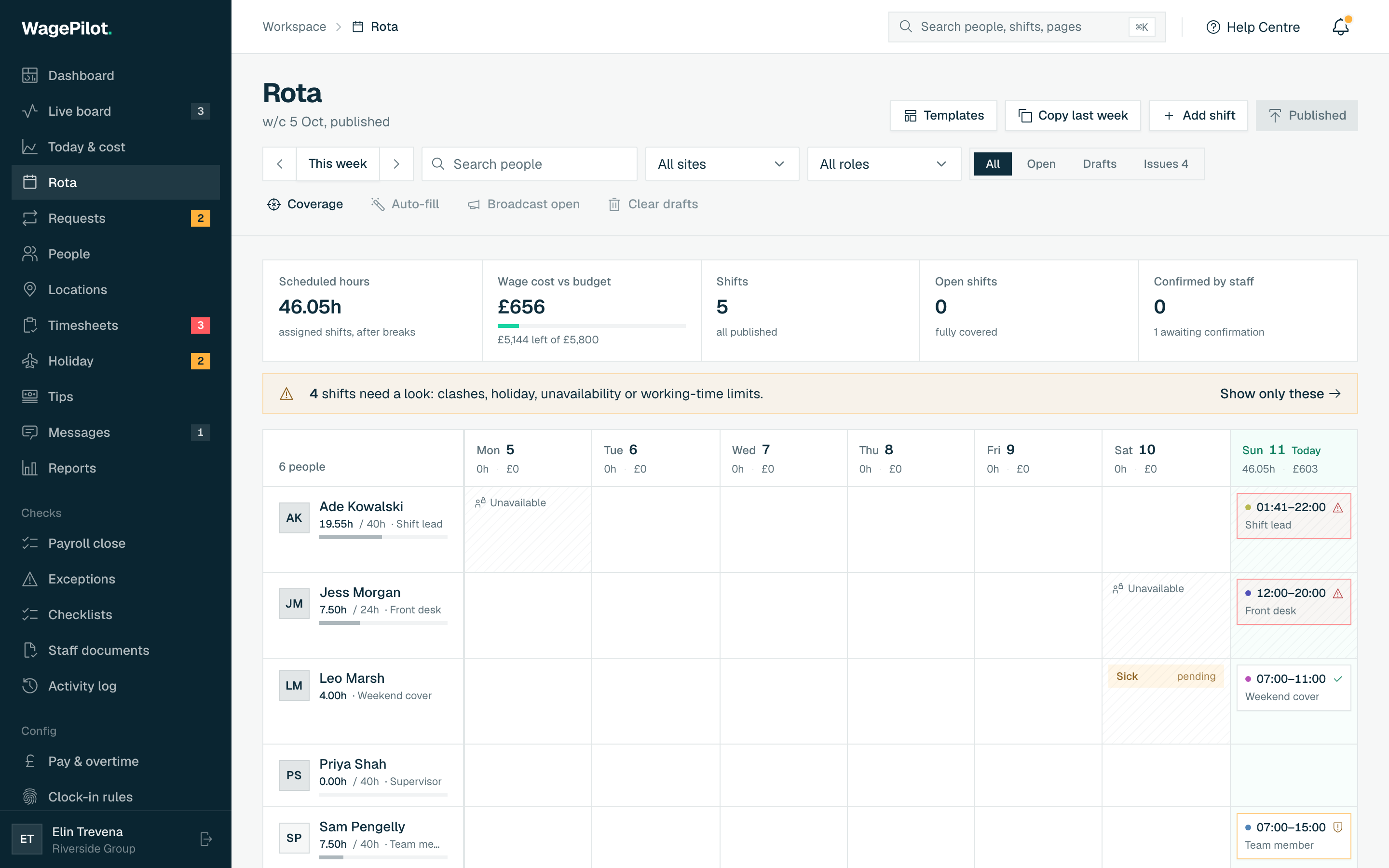
Moving through the weeks
- Arrows (‹ ›)
- Step back or forward one week. The label tells you where you are: “This week”, “Next week”, “Last week”, or “In 3 weeks”.
- This week
- A button top-right jumps you straight back to the current week. It only appears once you’ve paged away.
- The day column
- Each day shows its shifts, or “Day off” if you’re not on. Today’s date is highlighted in the live accent.
A week with nothing on it reads “No shifts scheduled this week.” Page forward to find your next one.
What a shift shows
Each shift card carries its time and role, the site, and who else is on with you that day. If your manager left a note on the shift, “keys are in the key safe”, it shows underneath. The status on the right tells you where the shift stands.
The status on each shift
- On shift
- A pulsing live chip means this is the shift you’re currently clocked into.
- Confirm
- A published, upcoming shift you haven’t acknowledged yet shows a Confirm button: see below.
- Confirmed
- Once you tap Confirm, the shift shows a green “Confirmed” tick so you (and your manager) know you’ve seen it.
- Requested / pending
- If you’ve put in to give this shift away or pick it up, a status chip shows how that request is going.
Confirming a shift
Confirming is a one-tap “yes, I’ve seen it and I’ll be there”. Tap Confirm on an upcoming published shift and it flips to Confirmed, see you then. Your manager sees the confirmation on their side, so they know the week has actually landed with the team, not just been published into the void.
Picking up an open shift
When a manager posts a shift with no name on it at one of your sites, an “Open shifts you can pick up” card appears at the top of your rota, with a count. Each open shift shows its day, time, role and site.
-
01
Tap Pick up
That puts your name forward for the shift. You’ll see “Requested: your manager will confirm”.
-
02
It shows Requested
The button switches to a greyed-out Requested so you don’t ask twice.
-
03
Your manager decides
Picking up is a request, not a done deal: your manager approves it, and only then does the shift become yours. If a colleague also wants it, the manager chooses between you.
Giving a shift away
Can’t make an upcoming shift? Tap Give away on it. That posts it for anyone on your team to cover: “Posted for anyone on your team to cover”. A teammate accepts, then your manager approves the change and the rota updates for both of you. For a targeted hand-off or a straight swap, use the Cover tab.