
Clocking in from the app
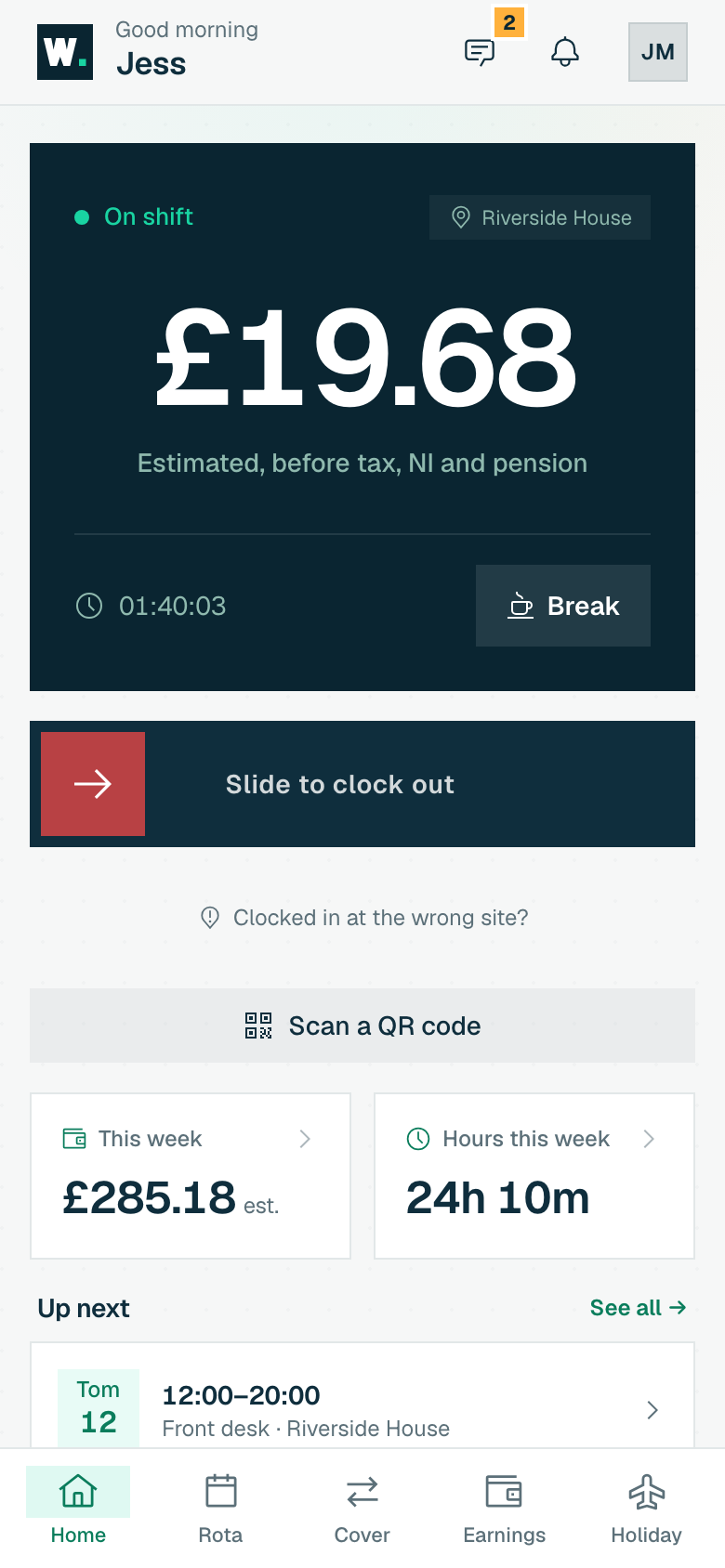
The staff home screen: slide to clock in or out, take a break, pick your site, and watch your live earnings tick up.
Staff do everything from one home screen. It changes shape depending on where they are in the day: a big slide to clock in when they are off, a live earnings gauge when they are on, and a "nice work" summary when they finish. This is what your team taps every shift.
Starting a shift
-
01
Slide to clock in
Drag the green slider across. It confirms deliberately so nobody clocks in by a stray tap in their pocket.
-
02
Pick a site if asked
If you work at more than one site and have no shift scheduled, a "Where are you clocking in?" sheet lists your sites with their addresses. Tap the one you are at.
-
03
You are on
The gauge starts ticking. If your clock-in was outside the site radius, a note tells you your manager can see it.
While you are on shift
What each control does
- Live earnings gauge
- The big number counts your pay up in real time, with a running stopwatch of time on shift.
- Overtime badge
- If this shift crosses a daily or weekly overtime threshold, an "Overtime 1.5×" chip appears and the gauge switches to the higher rate.
- Break
- Tap Break to start one and End break to come back. The app tells you whether it is a paid break or whether earnings are paused, based on your workplace’s policy.
- Slide to clock out
- The red slider ends the shift. It records your location once, the same as clock-in, then shows your total.
- Scan a QR code
- Shown when QR is switched on: opens the scanner to clock in or out from a printed poster instead.
Finishing up
After you clock out, the home shows a short "Nice work" summary (hours worked and estimated gross for the shift) with a View earnings button. Your This week and Hours this week tiles sit under the clock-in slider on your other home screens, and also open your full earnings.
When there is no shift
- Ready when you are: on open clock-in (no rota), the slider is always there to start and end a shift.
- Scheduled today: your next shift shows as a pre-shift card with start time, site and who else is on, above the slider.
- Nothing today: Home stays Ready when you are with the slider in place, so you can clock in whenever you actually start; any shift further ahead is lined up below it.