A time clock on the tablet you already own
Kiosk mode turns a tablet you already own into a shared time clock for one site. Staff tap their name on the roster, type their PIN if you ask for one, take a quick photo if you ask for that too, and the shift is recorded against the right site. No staff phone needed, no app to install for the team, and no hardware to buy.
Kiosk clock-in in the app
One shared tablet on the counter. Staff tap their name, enter a PIN, and clock in. Included on every plan, Free too.
Click through it in the live demo, no sign-up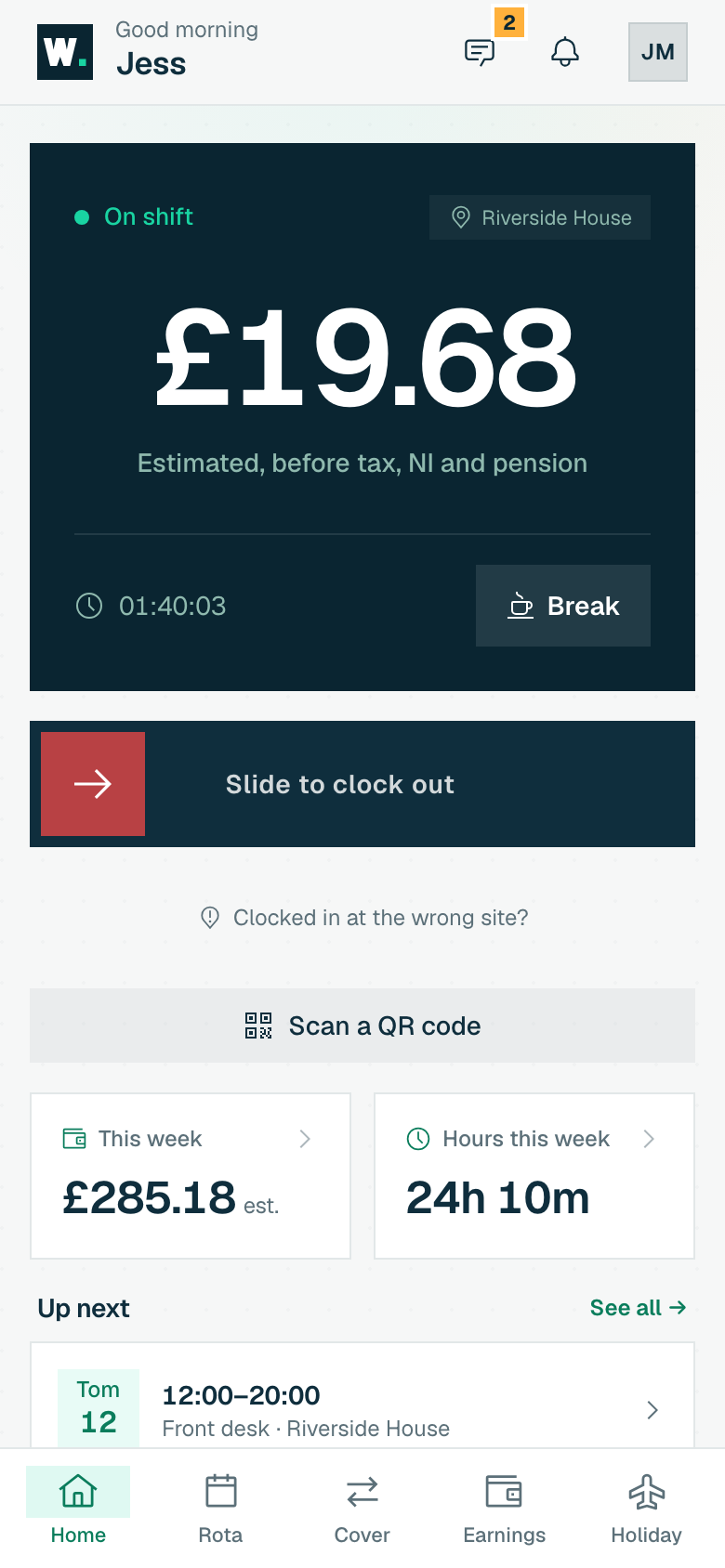
What you get
-
Tap your name, enter a 4 to 6 digit PIN, clocked in: easy, guessable PINs like 1234 or 0000 are refused
-
Optional photo at clock-in and clock-out, so you can see who actually punched
-
Breaks started and ended from the same tablet
-
The tablet is bound to one site and remembers it after a reboot or an update
-
A manager exit code locks the kiosk, so nobody wanders off into the rest of the app
-
Included on every plan, including Free
How it works, step by step
-
1
Set up the kiosk for a site
In your employer account, open Kiosk and pick the site the tablet lives in. Decide whether staff need a PIN, whether to take a photo at clock-in and clock-out, and how many seconds the result screen stays up before it returns to the roster. If you require PINs, WagePilot lists anyone at that site who does not have one yet, so you find out on the settings page and not at 6am with a queue.
-
2
Lock it with a manager exit code
Set an exit code before you hand the tablet over. The kiosk then stays on the clock-in screen; leaving it needs the code. The tablet remembers which site it is punching for, so a reboot, an update or a stray refresh never quietly points it at a different branch.
-
3
Staff tap their name
Everyone assigned to the site appears as a tile, with today’s rostered shift shown on it. Once the list grows past a dozen people a search box appears. A tap takes them to the PIN pad if you require one, then the photo if you require one, then the punch is saved.
-
4
Clock in, take a break, clock out
From the same tile a person can clock in, start or end a break, and clock out. If they have a rostered shift starting nearby, the punch attaches to it, so lateness and no-shows line up with the rota. If the tablet is left mid-flow, it returns to the roster on its own after 45 seconds, so the next person never finds someone else’s PIN pad.
-
5
Review the week as normal
Kiosk punches land on the same audited timesheet as every other clock-in, flagged with the method used. You review, correct with a logged reason, approve, and export the hours and estimated gross pay for your payroll.
Who it is for
The kiosk suits any site with a natural place for a shared device: a café counter, a pub back bar, a salon reception, a gym front desk, a warehouse entrance or a care home office. It is especially useful where staff cannot or should not use their own phones on shift, or where some of the team do not have a smartphone at all.
It is also the fastest way to see WagePilot working on day one. An owner can set up one site on the Free plan, put a tablet on the counter, and watch real clock-ins arrive without waiting for every member of staff to install anything.
Related tools, guides and comparisons
More of what WagePilot does
Kiosk clock-in: common questions
What do I need to run the WagePilot kiosk?
Is the kiosk included on the Free plan?
How does the kiosk stop buddy-punching?
What happens if the tablet loses wi-fi?
Can new starters use the kiosk before they set up the app?
Can I use the kiosk alongside phone clock-in?
Start running shifts on autopilot
Set up your first site this afternoon and watch the first shift tick up live. Free to start, never per head, flat per site as you grow.
Free for one site, up to 3 staff · no card to start · cancel anytime