
Checklists
Opening, closing, cleaning and patrol checklists for any site. Staff complete them on their phone, even offline; records can be amended, never edited.
Checklists (under Checks in the menu) shows what should be done at each site today, what is late and what needed action. Build a checklist once, give it a site, the days and a time window, and staff see it on their Home screen while it is due.
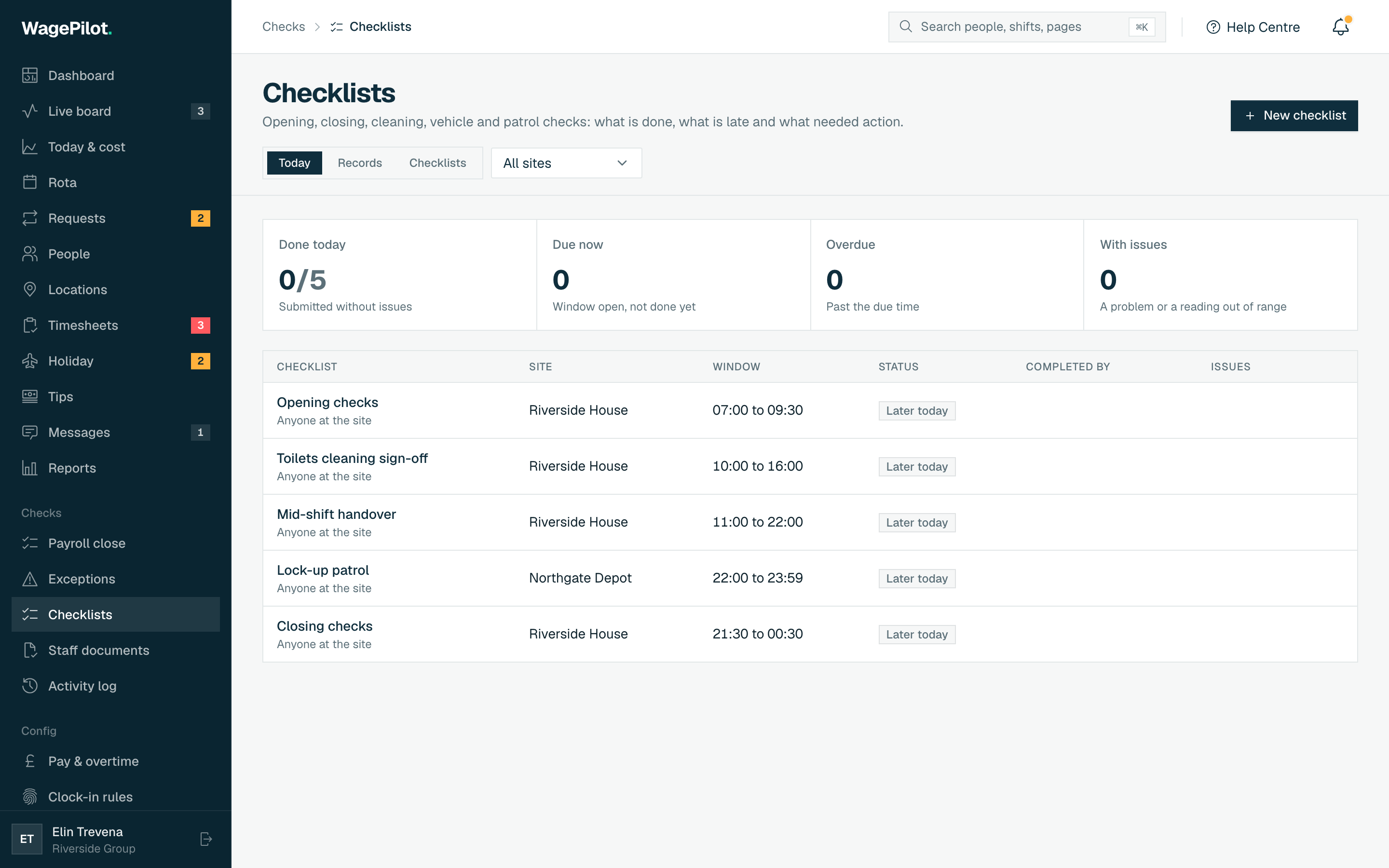
Create a checklist
-
01
Click New checklist
Top right of the Checklists page.
-
02
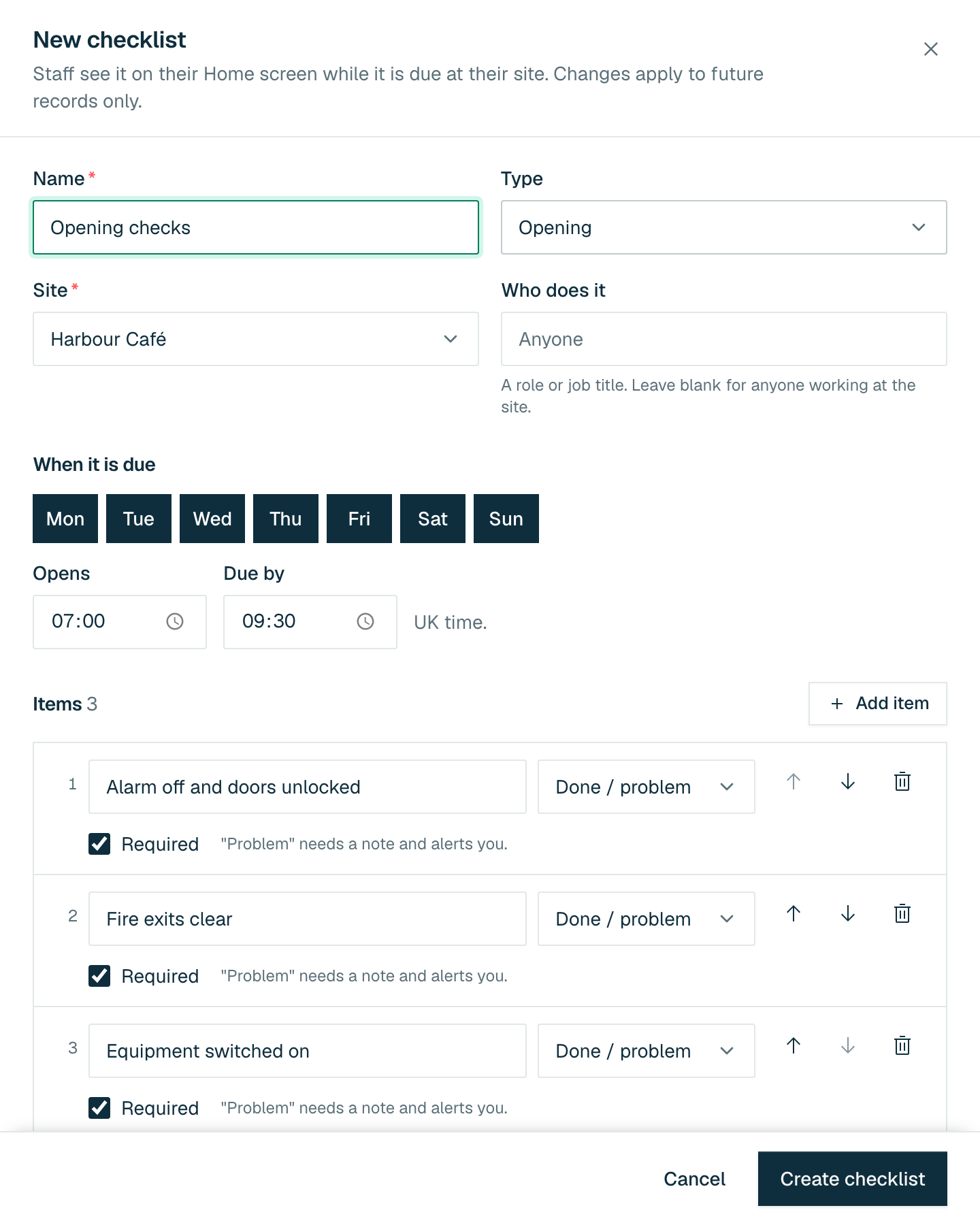
Name, type and site
Pick a Type (Opening, Closing, Cleaning sign-off, Site / job completion, Vehicle check, Security patrol, Safety walk, Handover or Custom). Each type starts you with a few sample items you can change. Choose the Site it belongs to.
-
03
Who does it
Type a role or job title, or leave it blank for anyone working at the site.
-
04
When it is due
Tick the days, then set Opens and Due by (UK time). A window that runs past midnight is due the next morning.
-
05
Add the items
Use Add item and give each one an answer type: Done / problem, Number, Text or Photo. Mark items Required as needed. For a number you can set Lowest and Highest: a reading outside the limits needs a note and alerts you.
-
06
Click Create checklist
Changes to a checklist apply to future records only.
How staff complete one
- While a checklist is due at the site they are working, a Checklists card appears on their Home screen. They tap it, answer each item and tap Submit checklist.
- If they mark a problem, they are asked What did you do about it? and you are alerted when they submit.
- No signal? They can still finish it. It is saved on the phone and sent when they are back online.
Records, amendments and printing
- The Today tiles count Done today, Due now, Overdue and With issues (a problem or a reading out of range).
- The Records tab lists every submitted checklist. Filter by All, With issues or Amended, pick a date range and click View for the answers, who completed it and when.
- Submitted records cannot be edited or deleted. A manager can click Amend record, correct the answers and give a reason. The amendment is added beside the original, which is kept.
- Click Print records on the Records tab for a print-ready copy of the date range, for an inspection, a client or your own files.
- On the Checklists tab you can Edit or Archive a checklist. Archiving keeps its records.