
Sleep-in shifts
Pay sleep-ins as a flat allowance, record time woken to work at the normal rate, approve them on Timesheets and export them to your payroll.
A sleep-in is a shift where someone sleeps on site overnight and is only on call. WagePilot estimates a flat allowance for it. If they are woken to work, they record that time on their phone: it is paid at their normal rate on top of the allowance and counts towards the minimum wage check. Time asleep does not.
Set the allowance
-
01
Open Pay & overtime
In the menu under Config, then scroll to Sleep-ins.
-
02
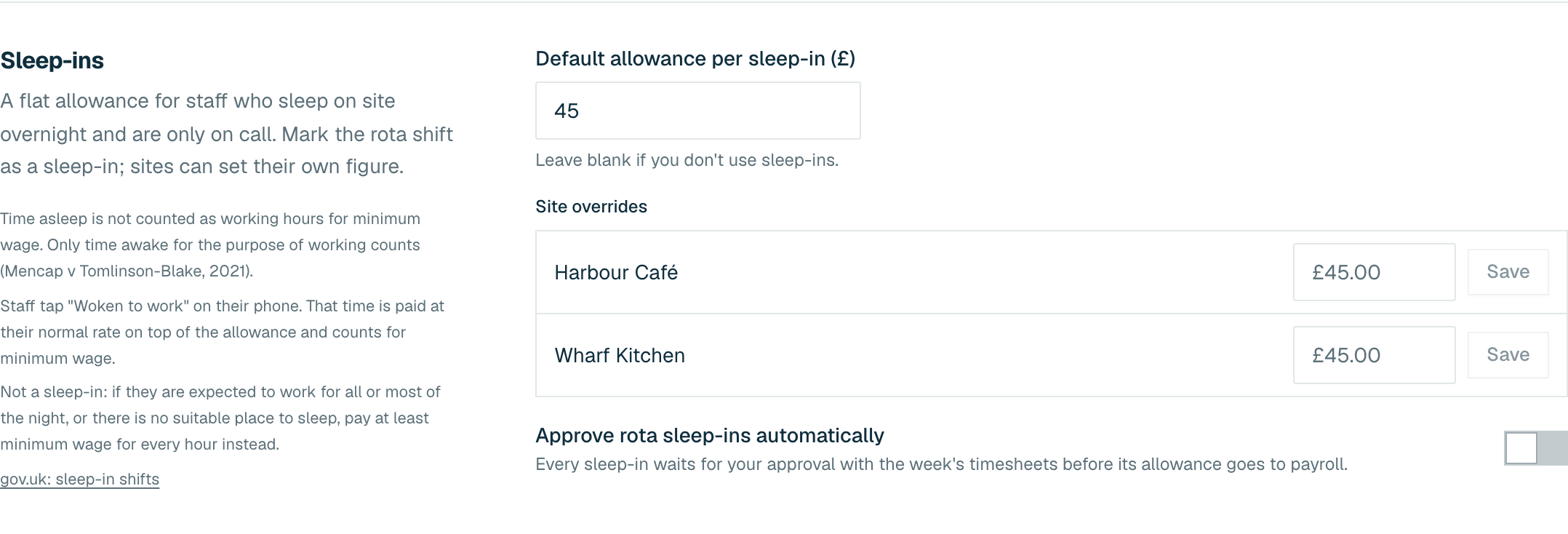
Enter the default
Fill in Default allowance per sleep-in (£). Leave it blank if you do not use sleep-ins.
-
03
Site overrides (optional)
Under Site overrides, give a site its own figure and click Save on that row.
-
04
Approval (optional)
Switch on Approve rota sleep-ins automatically to approve a sleep-in when it ends, as long as it was started against its own rota sleep-in shift. Otherwise every sleep-in waits for you on Timesheets.
-
05
Click Save changes
In the bar at the bottom of the page.
Put a sleep-in on the rota
In the shift editor on the Rota, switch on Sleep-in shift. The allowance fills in from the site or organisation default and you can change it for that shift. The shift shows the Sleep-in allowance instead of an hourly cost.
What staff do on the night
- On the night, their Home screen shows the sleep-in. They tap Start sleep-in.
- If they are woken, they tap Woken to work. Time is recorded until they tap Back to sleep, with an optional note under What were you woken for?
- In the morning they tap End sleep-in. It then waits for your approval, unless auto-approval applies.
Approve sleep-ins
- On Timesheets, the Sleep-ins card lists each one with the night, site, time woken, woken pay, allowance, total and status. Approve or reject each one.
- Someone slept in but did not start it on their phone? Click Record sleep-in, fill in the person, site, start, end and allowance. Recording it approves it. Add any time they were woken as a normal shift.
- Exceptions and Payroll close flag Sleep-in not approved and Sleep-in not on the rota so nothing is missed.
- Only approved sleep-ins go into the payroll export, with their own Sleep-in Allowance and Sleep-in Woken Hours columns.