Young and school-age workers
With dates of birth set, WagePilot checks rotas and hours against under-18 and school-age limits, tracks child work permits and flags issues.
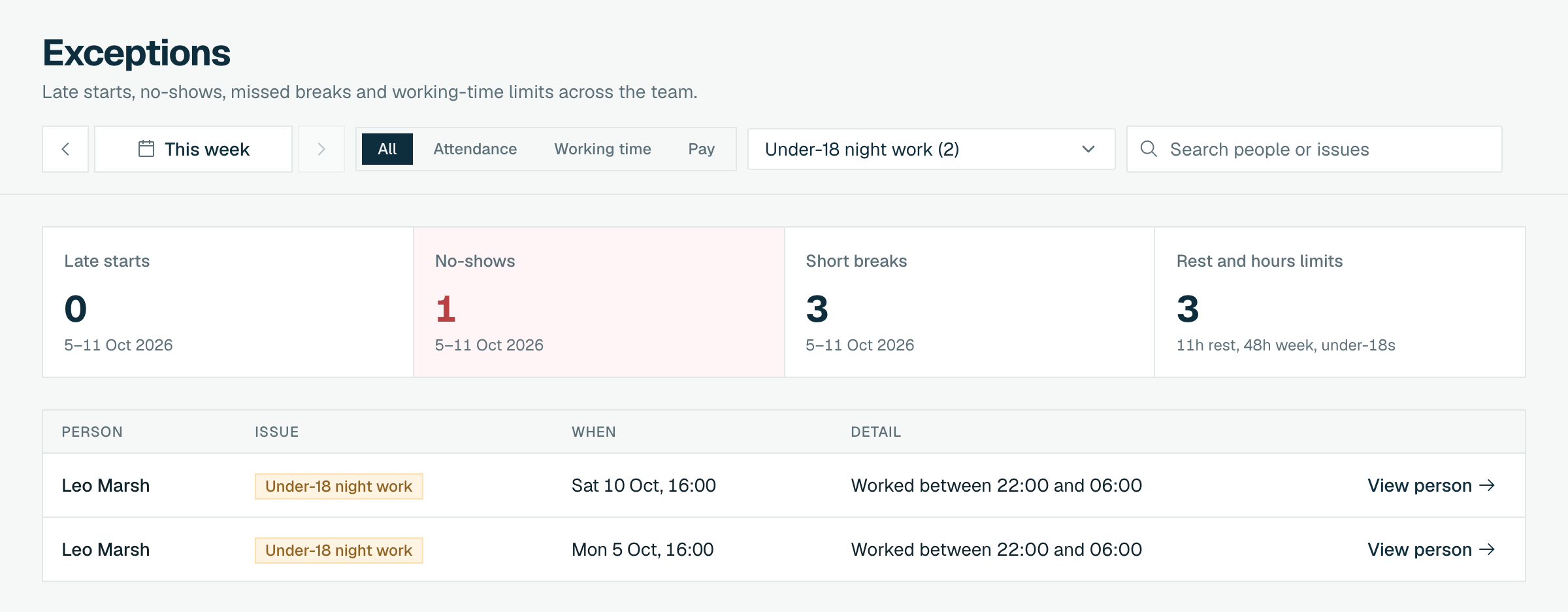
Every person needs a date of birth. It sets their minimum wage band and switches on the under-18 and school-age checks. WagePilot then checks the rota as you publish it and the hours actually worked, and lists anything over a limit on Exceptions.
What is checked
| Exception | What it means |
|---|---|
| Under-18 night work | Worked between 22:00 and 06:00. |
| Under-18 over 8h | More than 8 hours in a day. |
| Under-18 over 40h | More than 40 hours in a week. Under-18s cannot opt out or average it. |
| Under 11h rest | Less rest than needed between working days (12 hours for under-18s). |
| Break too short | Less than 30 minutes after 4.5 hours for under-18s. |
| School-age limit | Under school leaving age: no work before 7am or after 7pm, 2 hours on school days and Sundays, 12 hours in a school week, a 1-hour break after 4 hours. |
| No child work permit | A school-age child with no child work permit on file. |
| No 2-week holiday break left | A school-age child must have 2 weeks in a row without work in the school holidays each year. |
When you publish the rota
If a shift breaks an under-18 or school-age limit, publishing opens Working-time breaches on this rota with the person and the rule. Click Go back and fix them, or give a Reason for publishing anyway and click Publish anyway. The reason is saved in the audit log with each breach.
School-age children
- A child's profile on People shows an Under school leaving age card with the date the rules stop applying and their permit status: Permit on file, Permit expiring, Permit expired or No permit on file. Click Add permit to upload it as a Child work permit document.
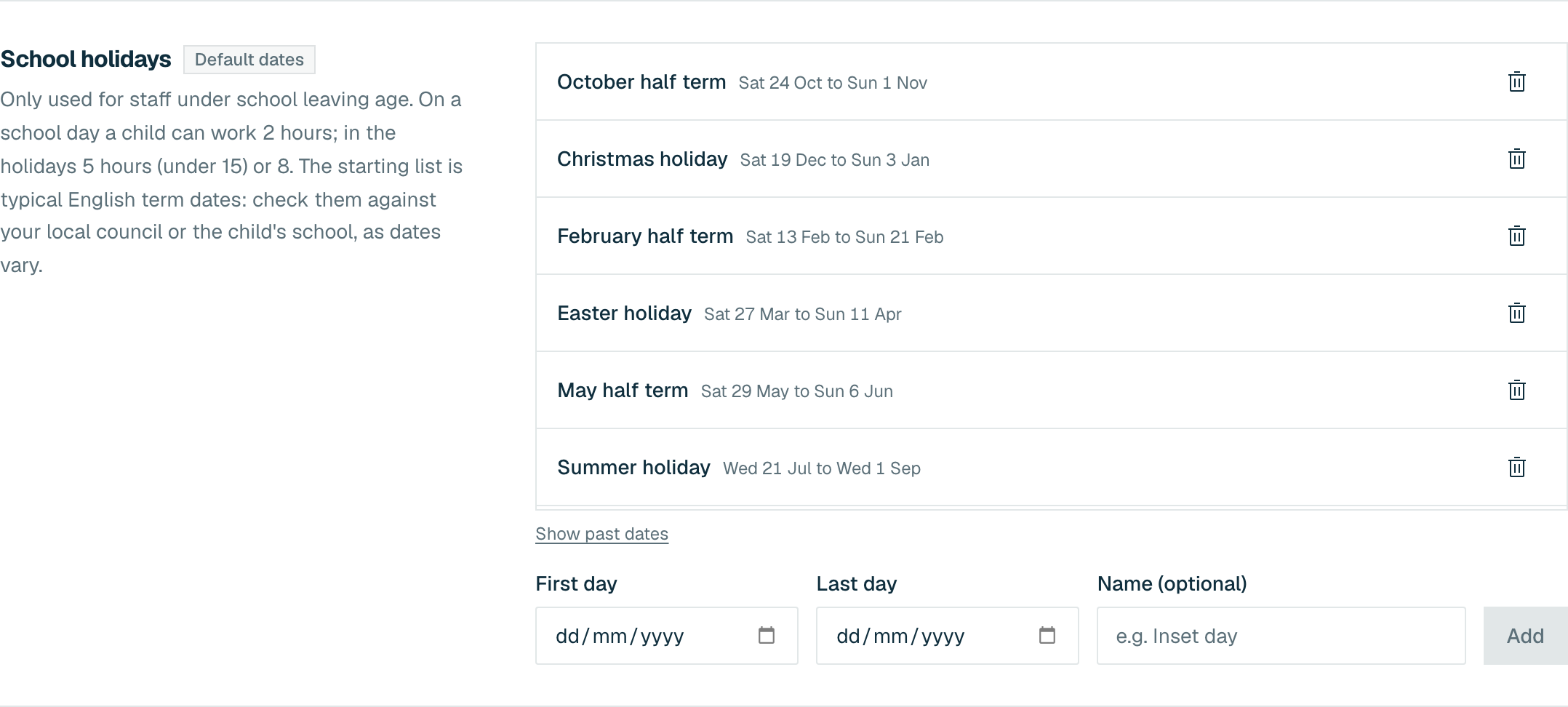
- School-day limits depend on term dates. Set them under Settings > School holidays: enter a First day, Last day and optional Name, then click Add. The starting list is typical English term dates, so check them against your local council or the child's school.