
Site access: codes and keys
Share door, alarm and key-safe codes only with the right staff, log every reveal, and keep a register of who holds which key, with prompts when someone leaves.
Site access keeps door, alarm and key-safe codes out of group chats. You choose who can see each code, staff reveal it in their app when they need it, and every reveal is recorded. It also keeps a register of keys and fobs and who holds them.
Add a code
-
01
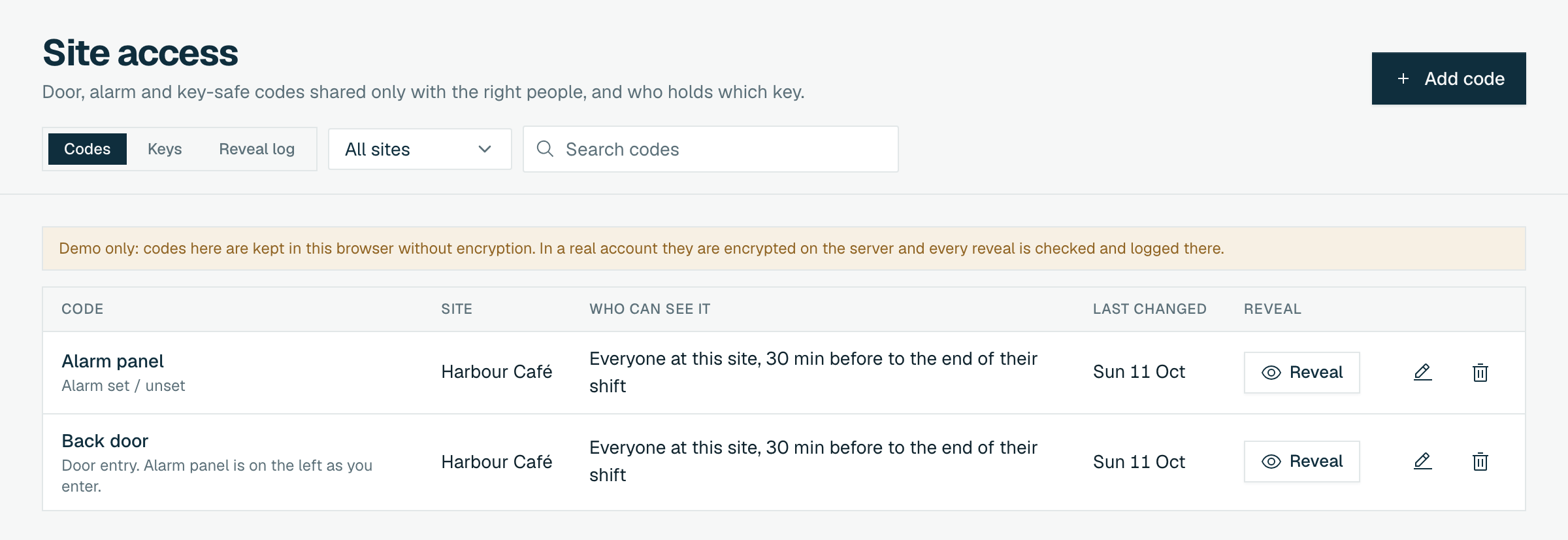
Open Site access and click Add code
The page has three tabs: Codes, Keys and Reveal log (the log is for the account owner only).
-
02
Site, type and name
Pick the Site and a Type: Door entry, Alarm set / unset, Key safe, Gate, Wi-Fi or Other. Give it a Name such as "Back door".
-
03
Enter the code
It is stored encrypted and never shown in a list. Use Notes for instructions only, never the code itself.
-
04
Choose who can see it
Owners and managers only, Everyone at this site, Staff with these job titles or Specific people. Leave Only while on shift at this site on to limit reveals to a window around their shift (Minutes before start and Minutes after end).
-
05
Click Save code
Owners and managers can always reveal every code.
How staff see a code
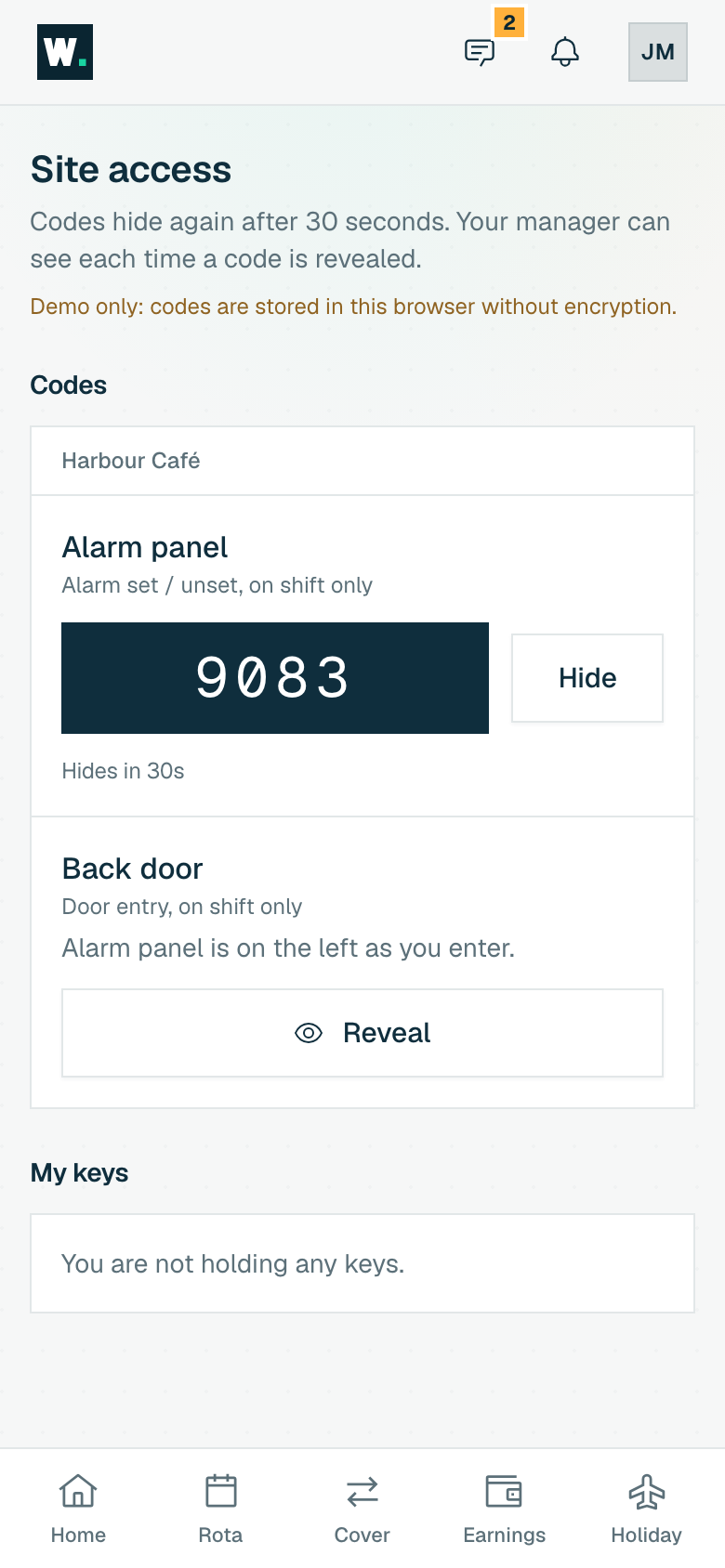
Staff with access get a Site access card on their Home screen. They tap Reveal next to the code. It hides again after 30 seconds, or when they tap Hide, and you can see each time a code is revealed.
Keys and fobs
- On the Keys tab click Add key and enter the Site, Name, Tag or number and how many Copies you hold.
- Click Issue to give a key to someone, with an optional Due back date. They confirm receipt in their app by typing their full name and tapping I have received this key.
- Who holds what shows each key out, whether it is Confirmed and whether it is Overdue. Click Returned and then Record return when it comes back.
- Use Retire when a key is lost for good or the lock has been changed. Its history is kept.
Reveal log
The account owner's Reveal log tab lists every reveal and every refused attempt: when, who, which code, the site, the result (Revealed, Refused or Too many tries) and the device.
When someone leaves
When you end someone's employment from their profile, the dialog shows Site access to tidy up: the codes they could see, so you can change them after their last day, and any keys they still hold, each with a Collected button. Afterwards, any code a leaver could see that has not been changed since they left is marked Change it on the Codes tab.